
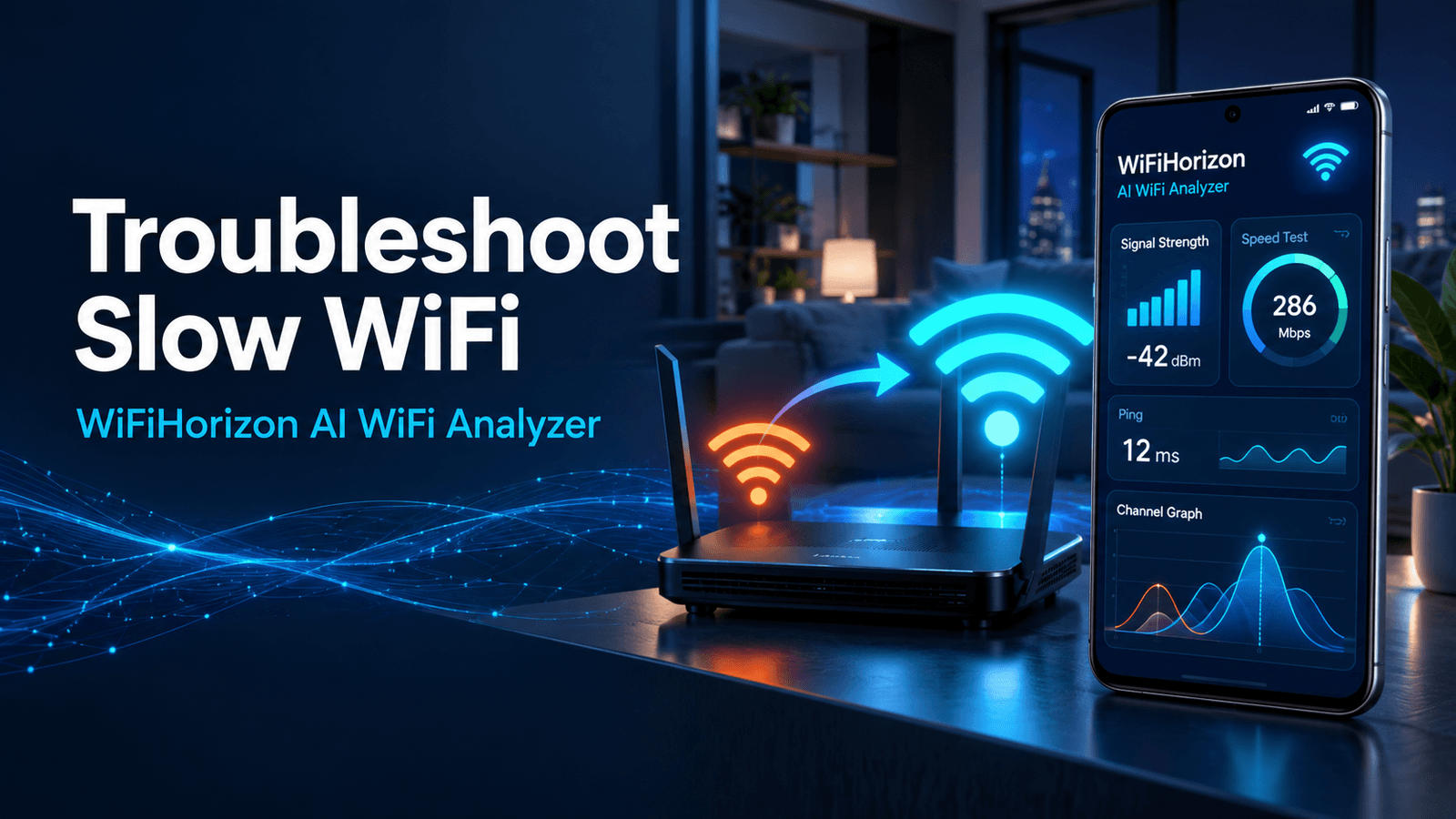
Learn how WiFiHorizon helps Android users diagnose slow WiFi, measure signal strength, run speed tests, analyze channels and get practical AI recommendations.
Why Slow WiFi Is Not Always an Internet Provider Problem
A slow connection is frustrating because the visible symptom rarely identifies the real cause. A video may buffer a call may freeze or a game may lag even though the broadband plan appears fast enough. The issue could be weak signal strength, an overloaded WiFi channel, poor router placement interference from nearby networks or a device that is consuming more bandwidth than expected. WiFiHorizon: AI WiFi Analyzer brings the most useful troubleshooting tools into one Android app. Instead of presenting network information as isolated technical numbers it helps users measure their connection, understand what the readings mean and decide what to check next. This makes the app useful for homes, offices, remote workers, students gamers and anyone who depends on stable wireless connectivity.
Start with Live WiFi Signal Strength
Signal strength is one of the first measurements to examine when WiFi feels inconsistent. WiFiHorizon monitors the current signal in dBm and as a percentage. It also presents quality labels and real-time graphs, allowing users to see whether the connection remains stable or changes as they move around the property. A reading near the router may look strong while the same network becomes unreliable behind thick walls on another floor or in a distant room. By comparing readings in different locations users can distinguish a coverage problem from a general internet-speed problem. The app also displays useful network details such as SSID, BSSID, IP address and frequency band, helping users confirm that they are testing the intended network.
Measure Download Speed Upload Speed and Ping
A WiFi speed test provides a practical view of connection performance. WiFiHorizon measures download speed, upload speed and ping. Download speed affects activities such as streaming and file retrieval. Upload speed matters for video calls, cloud backups and sending large files. Ping reflects responsiveness and can be especially important for gaming, meetings and other real-time applications. Run tests in more than one room and at different times of day. If performance is strong near the router but drops sharply elsewhere, coverage is probably contributing to the issue. If speeds are poor in every location, users can restart their networking equipment, compare results on another device and contact their provider when appropriate. Repeated testing is more informative than relying on a single result.
Check Nearby Networks and Channel Congestion
Wireless networks share limited radio space. In apartments, offices and densely populated neighborhoods, several routers may operate on overlapping or crowded channels. This congestion can reduce performance even when the signal indicator appears strong. WiFiHorizon scans nearby WiFi networks and supports channel-congestion and interference analysis. The resulting overview can help users recognize a crowded local environment and make better router-configuration decisions. Depending on the router, switching to a less congested channel or choosing an appropriate frequency band may improve consistency. Users should follow their router manufacturer's instructions before changing advanced settings.
Use the AI WiFi Assistant for Clear Next Steps
Network terminology can make troubleshooting feel more complicated than it needs to be. WiFiHorizon includes an AI WiFi Assistant that explains weak signal readings, congestion, dead zones, router-placement concerns and network health results in plain language. It converts observations into practical suggestions rather than leaving users to interpret every measurement alone. New users receive up to five free AI chats. A subscription is required after the complimentary allowance is used, with pricing and renewal information shown before purchase. The assistant is most useful when users provide context, such as the room where the issue occurs, the signal reading, the speed-test result and whether the problem affects one device or several.
A Simple Slow WiFi Troubleshooting Routine
Begin beside the router and note signal strength, download speed, upload speed and ping. Repeat the same checks in the room where the connection feels slow. Review the live graph while moving between the two locations. Scan nearby networks and check whether the current channel appears congested. If performance deteriorates with distance, test a more open router position and reduce major obstacles where possible. Finally, review the WiFi health score and ask the AI assistant to explain the combined results. This measurement-first process reduces guesswork and helps users focus on the most likely cause. WiFiHorizon does not replace a router, internet plan or professional network assessment, but it makes everyday WiFi troubleshooting clearer, faster and more accessible.
Download WiFiHorizon
WiFiHorizon is available for Android through Google Play. Download the app to analyze signal strength, test performance explore coverage, review nearby networks inspect connected devices and receive practical AI-powered WiFi guidance.
Download WiFiHorizon on Google Play:
About SpeckPro Digital
WiFiHorizon: AI WiFi Analyzer is designed, developed and published by SpeckPro Digital. SpeckPro Digital creates practical digital products that make technology easier to understand and use.
Frequently asked questions
WiFiHorizon helps identify common WiFi issues by measuring signal strength, running speed tests, analyzing nearby networks, checking channel congestion, and providing AI-based recommendations. It helps users understand whether the problem is caused by weak coverage, interference, or network performance issues.
Yes, WiFiHorizon is designed as an Android WiFi analyzer app that combines network scanning, signal monitoring, speed testing, and AI guidance in one place. It is useful for users who want a simpler way to understand and improve their wireless connection.
WiFiHorizon does not directly increase internet speed or replace your router. Instead, it helps identify factors that may reduce performance, such as weak signals, crowded channels, interference, or poor router placement, allowing users to take practical steps to improve their connection.
WiFiHorizon measures important connection factors including download speed, upload speed, and ping. These results help users understand streaming performance, video call quality, file transfer speed, and responsiveness for online activities.
The AI WiFi Assistant explains technical WiFi information in simple language and suggests possible next steps based on network conditions. Users can share details such as signal readings, speed test results, and connection issues to receive more relevant troubleshooting guidance.