
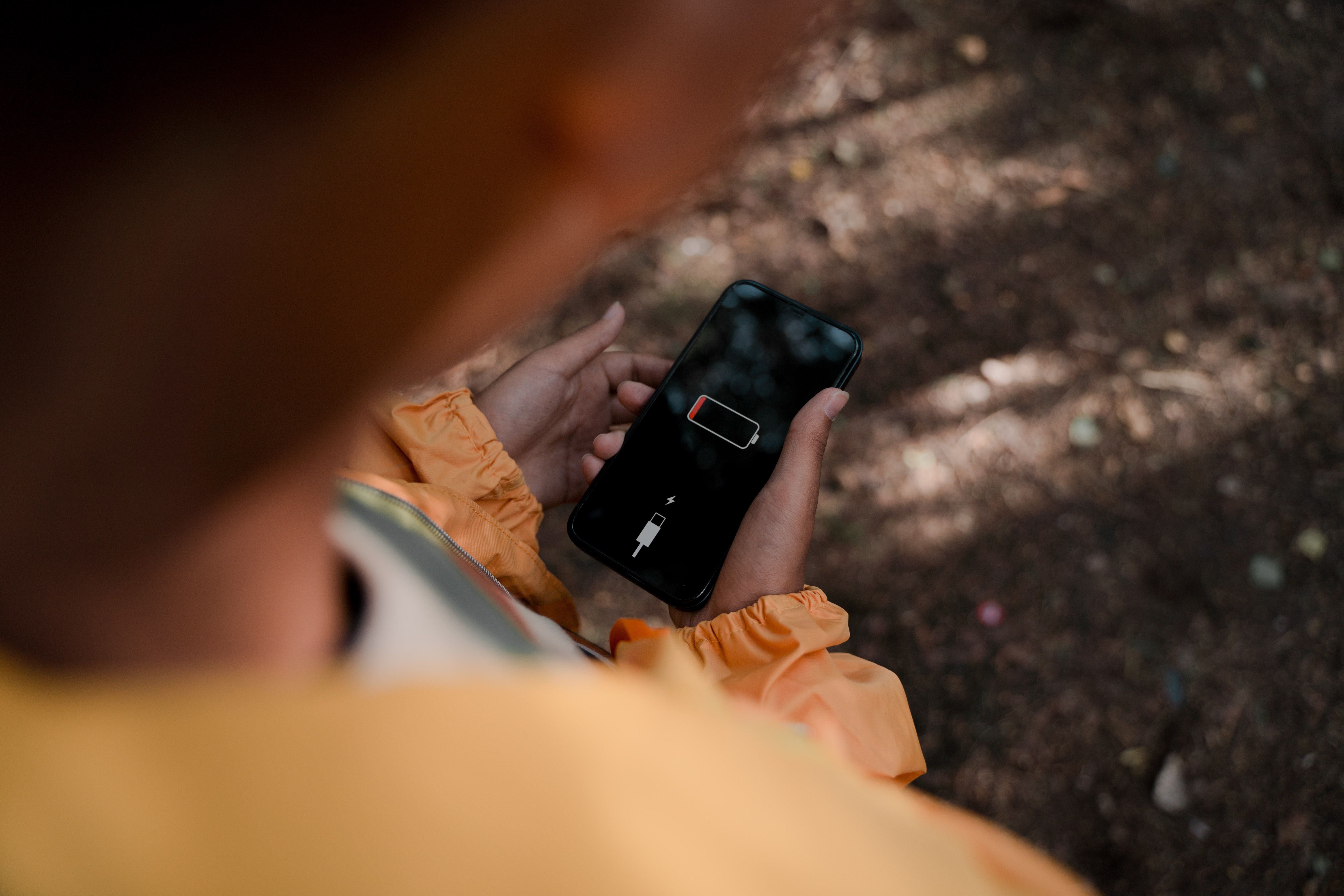
Wondering why your phone battery is draining so fast on Android? Learn how to find the exact app causing it and fix the problem with simple, proven steps.
Introduction
If you have found yourself charging your phone two or three times a day and still wondering, "why is my phone battery draining so fast on Android," you are dealing with one of the most common — and most fixable — smartphone frustrations. In most cases, the culprit is not your battery health or your phone's age. It is a specific app running in the background, syncing constantly, refreshing data, or holding your screen awake longer than it should. This guide shows you exactly how to identify which app is responsible and what to do once you find it.
Common Reasons Why Android Battery Drains So Fast
Before pointing fingers at any single app, it helps to understand the usual suspects behind rapid battery drain: Background app refresh — apps checking for updates or syncing data even when closed Location services — GPS-heavy apps like maps, delivery, or fitness trackers running constantly Push notifications — apps maintaining a constant connection to receive alerts instantly Poor app optimization — apps with bugs or memory leaks that consume more power than necessary High screen brightness and always-on display — often combined with one of the above issues Outdated apps — older versions missing performance fixes included in newer updates Identifying which of these applies to your phone starts with checking your battery usage data directly.
How to Find the Exact App Causing Battery Drain
1. Check Battery Usage in Settings
Android tracks exactly how much battery each app consumes. This is the fastest and most reliable way to identify the problem. Open Settings Go to Battery (sometimes under "Battery and Device Care") Tap Battery Usage or View Details Review the list of apps ranked by power consumption over the last 24 hours or past week If one app stands out — especially one you rarely open — that is usually your answer.
2. Look for Background Activity
Some apps consume very little battery while you are actively using them, but quietly drain power in the background. Android separates this data so you can see it clearly. Tap on any app within the Battery Usage screen, and you will see a breakdown of "Background" versus "Active" usage. If background usage is significantly higher than active use, that app is likely running unnecessary processes when you are not even using it.
3. Watch for Apps Stuck "Awake"
Occasionally, a buggy app holds what is called a "wake lock" — preventing your phone from entering its low-power sleep state even when the screen is off. This is one of the most damaging forms of battery drain because it runs continuously, unnoticed. If an app shows unusually high battery usage relative to how often you actually open it, this is often the cause. Restarting your phone temporarily resolves wake lock issues, but the app will likely need to be restricted or updated to prevent it from happening again.
How to Fix Battery Drain Once You Find the App
1. Restrict Background Activity
Once you have identified the problem app, limit its ability to run in the background: Go to Settings → Apps Select the app Tap Battery Choose Restricted or Optimized instead of Unrestricted This stops the app from syncing, refreshing, or running processes when you are not actively using it — without needing to uninstall anything.
2. Update or Reinstall the App
If a specific app is consistently draining battery despite restrictions, check the Play Store for a pending update. Developers frequently release patches that fix battery and performance issues. If the app is already up to date, try uninstalling and reinstalling it to clear out any corrupted background processes.
3. Adjust Location and Notification Permissions
Apps with constant access to your location are some of the heaviest battery users on any Android device. Review which apps actually need location access: Go to Settings → Location → App Permissions Change unnecessary apps from "Allow all the time" to "Allow only while using the app" Similarly, disabling push notifications for apps you do not need real-time alerts from reduces how often your phone wakes up to check for new data.
Why This Matters
For students relying on their phone to take notes, attend virtual classes, or commute between locations, a dying battery mid-day can mean missing important moments. For freelancers and entrepreneurs, it can mean missing a client call or losing access to a critical app at the wrong time. For office workers, it often means scrambling for a charger during back-to-back meetings. Battery drain is not just an inconvenience — it directly affects your ability to stay productive and connected throughout the day. Identifying and fixing the actual cause, rather than simply charging more often, solves the problem at its source and extends the long-term health of your battery as well.
Recommended Apps and Tools
While Android's built-in battery settings handle most diagnostics, a few dedicated tools can make ongoing monitoring easier and more precise: AccuBattery — Tracks real-time battery health, charging speed, and app-by-app power consumption with more detail than Android's native settings. GSam Battery Monitor — Offers in-depth historical battery usage graphs, helping you spot patterns over days or weeks rather than just the last 24 hours. Greenify — Identifies and hibernates apps that misbehave in the background, particularly useful for older or lower-spec Android devices. These tools are especially useful if your battery issue is intermittent or hard to pin down using Android's standard settings alone.
Final Thoughts
If you have been asking yourself "why is my phone battery draining so fast on Android," the answer is almost always traceable to a specific app — not a failing battery. Checking your battery usage settings takes less than a minute and usually reveals the exact culprit immediately. From there, restricting background activity, updating the app, or adjusting permissions resolves the issue in most cases. A few minutes of troubleshooting can add hours back to your battery life and save you from the daily stress of chasing a charger. Looking for more tools to keep your phone running efficiently? Apps Hunt features the best battery monitors, performance trackers, and productivity apps to help you get the most out of your device.
Frequently asked questions
The most common causes are background app activity, excessive location tracking, constant push notifications, or a poorly optimized app. Checking Settings → Battery → Battery Usage will show you exactly which app is responsible.
Go to Settings → Battery → Battery Usage to see a ranked list of apps by power consumption. Tap on any app to see a breakdown of active versus background usage, which helps pinpoint apps running unnecessarily in the background.
High background battery usage means the app is consuming power while you are not actively using it often through syncing, refreshing data, or maintaining a constant connection for notifications. Restricting its background activity in Settings usually resolves this.
Yes. Go to Settings → Apps → select the app → Battery, and choose "Restricted" or "Optimized." This limits background activity without removing the app or affecting it while you are actively using it.
Yes, significantly. Apps with "Allow all the time" location access continuously use GPS, which is one of the most battery-intensive features on any phone. Changing this to "Allow only while using the app" in Settings → Location can noticeably improve battery life.
This usually points to background app refresh, push notifications, or a wake lock issue where an app prevents your phone from entering sleep mode. Checking battery usage by app and restricting unnecessary background activity typically fixes this.
Yes, social media apps are commonly among the highest battery consumers due to constant background refreshing, video autoplay, and location-based features. Restricting their background activity or limiting notifications can reduce their impact significantly.
If battery drain is isolated to specific situations or correlates with using particular apps, it is almost always an app issue. If your phone drains quickly even in standby with minimal app activity and your battery is over two years old, declining battery health may also be a factor.
Yes. AccuBattery and GSam Battery Monitor both provide detailed, app-by-app battery tracking with historical data, while Greenify helps hibernate apps that misbehave in the background — all useful for ongoing battery monitoring.
A restart can temporarily resolve issues like stuck wake locks or frozen background processes, but it does not fix the underlying cause. For a lasting fix, identify the specific app through Battery Usage settings and restrict its background activity.