
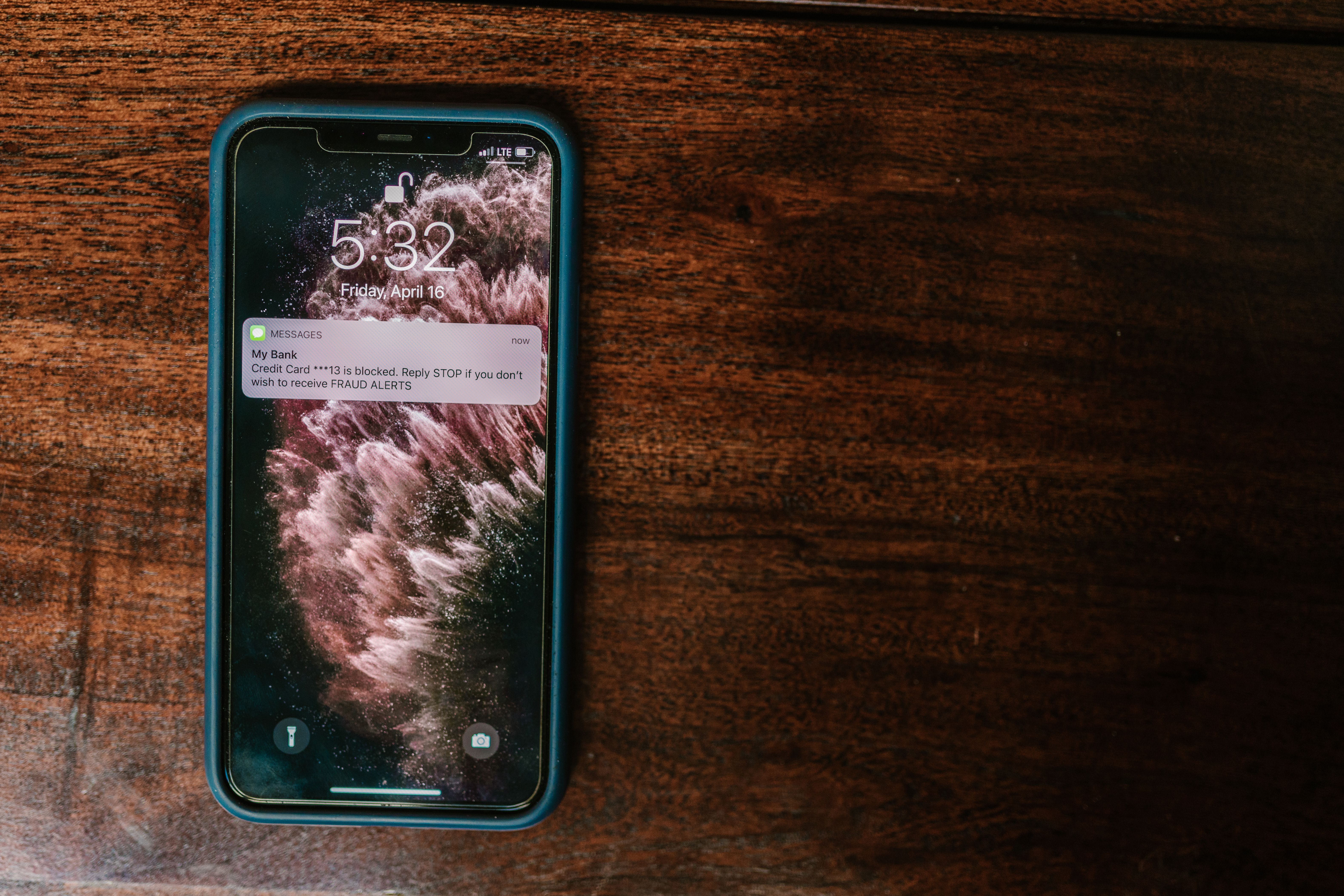
how to stop notifications on Android the right way — silence distracting alerts while keeping important messages from clients, contacts, and apps that matter most.
Introduction
If your phone buzzes every few minutes with app updates, promotional offers, game reminders, and notifications you never asked for, you are not alone. Learning how to stop notifications on Android is one of the most searched smartphone fixes — and for good reason. Constant alerts break focus, drain attention, and make it harder to notice the messages that actually matter. The good news is you do not have to choose between total silence and total chaos. Android gives you precise control over which notifications appear, when, and from whom — so you can cut the noise without missing a client email, a school deadline, or a call from someone important. This guide walks you through exactly how to do it.
Why Android Notifications Get Out of Control
Most people never intentionally agree to constant notifications — they accumulate gradually as you install new apps, each requesting permission to alert you, often by default. A few common reasons notifications spiral out of control: Apps request notification access during setup, and most users tap "Allow" without thinking twice Marketing and promotional alerts get bundled in with useful, functional notifications Multiple apps for the same purpose — like several social media or shopping apps — each compete for your attention Default settings favor more notifications, not fewer, since this increases app engagement for developers The result is a notification panel full of noise, making it easy to overlook the one alert you actually needed to see.
How to Stop Notifications on Android (Step by Step)
1. Turn Off Notifications for Specific Apps
The most direct way to stop notifications on Android is to disable them at the app level. Open Settings Go to Notifications (or Apps → Notifications) Tap App Settings or See All Apps Select the app you want to silence Toggle off Allow Notifications, or disable specific notification types within that app This works well for apps that are useful overall but send too many low-value alerts — like games, shopping apps, or social platforms.
2. Use Notification Categories Within Apps
Many apps allow you to control notifications by category rather than switching them off entirely. For example, an email app might let you keep notifications for new messages while disabling alerts for promotions or read receipts. Within the app's notification settings (Settings → Apps → [App Name] → Notifications), look for notification categories or channels. This lets you keep the alerts that matter and silence the rest — without losing the app's core functionality.
3. Enable Do Not Disturb with Exceptions
Android's Do Not Disturb mode silences all notifications, but it can be customized to allow exceptions for the people and apps that matter most. Go to Settings → Sound & Vibration → Do Not Disturb Tap Exceptions (or People and Apps) Add specific contacts who can still reach you with calls or messages Allow specific apps to bypass Do Not Disturb if needed You can also schedule Do Not Disturb to activate automatically during study sessions, work hours, or sleep — so you never have to remember to turn it on manually.
How to Keep Important Alerts While Silencing the Rest
1. Set Priority Conversations and Contacts
Most Android phones let you mark specific contacts or conversations as priority, ensuring their messages always come through — even when Do Not Disturb is active. In your messaging app, long-press a conversation and look for an option like "Priority" or "Mark as important." This is especially useful for freelancers and entrepreneurs who need to stay reachable for key clients without being interrupted by everything else.
2. Use Focus Modes for Work or Study
Android's Focus Mode allows you to pause distracting apps during specific times, such as work hours or study sessions, while still allowing essential communication apps to function normally. Go to Settings → Digital Wellbeing → Focus Mode, select the apps you want to pause, and set a schedule. This is one of the most effective ways for students and office workers to reduce distractions without disconnecting entirely.
3. Customize Notification Channels
Android's notification channel system allows fine-grained control over how each type of alert behaves — including whether it makes a sound, shows on the lock screen, or appears as a pop-up. Within an app's notification settings, tap on a specific channel (such as "Promotions" or "Account Activity") and adjust its behavior independently. This way, important alerts can still appear prominently while less critical ones stay quiet in the background.
Why This Matters
Constant notifications do more than create noise — they fragment attention and make deep, focused work significantly harder. Research on digital distraction consistently shows that frequent interruptions reduce productivity and increase the time it takes to refocus after each alert. For students, this can mean losing concentration mid-study session. For freelancers and entrepreneurs, it can mean missing a genuinely important client message buried under dozens of irrelevant alerts. For office workers, it often means a constant low-level stress of feeling "always on." Taking control of your notification settings is a small investment of time that pays off in better focus, reduced stress, and a phone that works for you — not against you.
Recommended Apps and Tools
While Android's built-in settings handle most notification management needs, a few additional tools can refine the experience further: Digital Wellbeing (built into Android) — Provides Focus Mode, app timers, and detailed notification activity reports to help you understand and control your usage patterns. Notification History — A built-in Android feature that lets you review recently dismissed notifications, useful for catching anything important you may have missed while in Do Not Disturb mode. Brevent or Naptime (for advanced users) — Helps manage which apps can run background processes and send notifications, particularly useful on older or lower-spec Android devices. For most users, Android's native settings combined with a clear notification strategy are more than enough — no third-party app required.
Final Thoughts
Learning how to stop notifications on Android does not mean disconnecting from the world — it means deciding what deserves your attention and filtering out what does not. With app-level controls, Do Not Disturb exceptions, priority contacts, and Focus Mode, you can build a notification system that keeps you informed without keeping you constantly interrupted. Start by auditing the apps sending you the most notifications, disable what is not essential, and set up exceptions for the people and alerts that genuinely matter. Within a few minutes, your phone will feel noticeably calmer. Looking for more tools to improve your digital habits and productivity? Apps Hunt features the best apps for focus, digital wellbeing, and smarter device management.
Frequently asked questions
Go to Settings → Notifications → App Settings, select the app you want to silence, and toggle off "Allow Notifications." You can also disable specific notification categories within individual apps for more precise control.
Open Settings → Notifications → App Settings, find the specific app, and disable its notifications individually. This leaves notifications from all other apps unaffected.
Yes. Use Do Not Disturb with Exceptions (Settings → Sound & Vibration → Do Not Disturb → Exceptions) to allow specific contacts to reach you even when notifications are silenced.
Turning off notifications disables alerts permanently for a specific app. Do Not Disturb temporarily silences all notifications system-wide, but can be customized with exceptions for priority contacts and apps, and can be scheduled to turn on and off automatically.
Most apps separate promotional notifications into their own category within the app's notification settings. Go to Settings → Apps → [App Name] → Notifications, and disable the "Promotions" or "Marketing" channel specifically, while keeping essential alerts active.
Focus Mode lets you pause notifications from selected distracting apps during specific times, such as work or study hours, while still allowing essential apps to function normally. It can be found under Settings → Digital Wellbeing → Focus Mode.
Android includes a Notification History feature that shows recently dismissed notifications. Enable it under Settings → Notifications → Notification History to review anything you may have missed.
No. Disabling notifications only stops alerts from appearing — the app itself continues to work normally. You can still open the app manually and access all of its features.
Schedule Do Not Disturb for your work hours and add priority contacts as exceptions. This silences general notifications while still allowing urgent calls or messages from key people to come through.
For most users, Android's built-in Digital Wellbeing and notification settings are sufficient. Advanced users on older devices sometimes use apps like Brevent or Naptime for additional background process control, though this is rarely necessary on modern Android versions.