
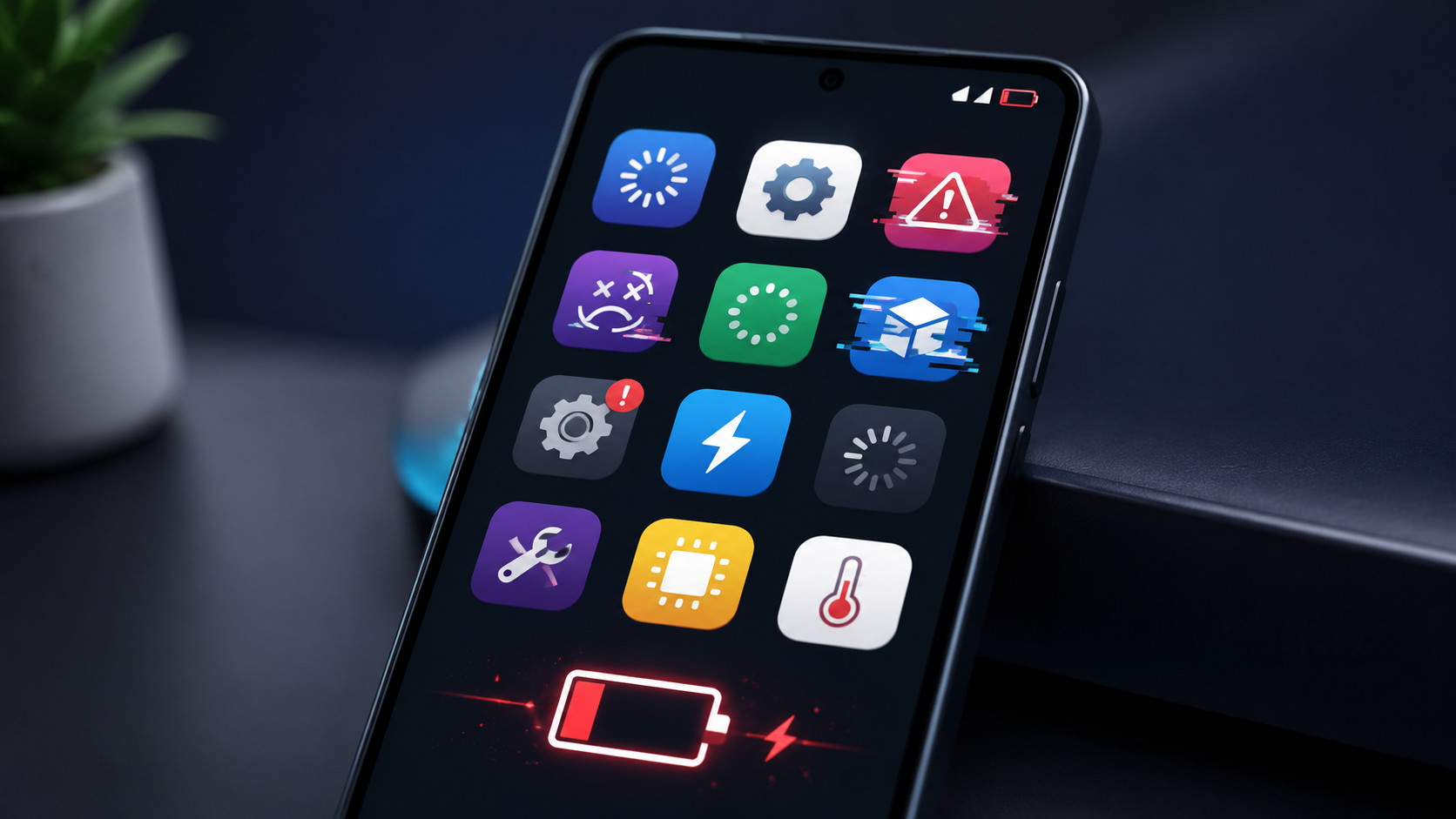
Apps not opening or crashing on Android? Learn simple, proven fixes for app crashes, freezing, and battery drain step-by-step solutions that work without any technical knowledge.
Introduction
There is nothing more frustrating than tapping an app and watching it freeze, crash, or simply refuse to open. If you have been dealing with apps not opening on Android or fighting an app crashing fix that just will not stick, you are not alone — these are among the most common issues Android users face every day. The causes range from outdated software and corrupted cache files to background processes hogging your battery. The good news is that most of these problems have straightforward solutions you can apply in minutes, without needing any technical knowledge. This guide walks you through every fix — clearly, step by step.
Why Apps Stop Working on Android
Before jumping into solutions, it helps to understand what is actually going wrong. Android apps can misbehave for several reasons: Corrupted cache or data stored by the app over time Outdated app or Android version that creates compatibility issues Insufficient storage space preventing the app from running properly Background processes consuming too many resources Bugs introduced in a recent update from the developer Understanding the root cause makes it easier to apply the right fix the first time.
How to Fix Apps Not Opening on Android
1. Restart Your Device First
It sounds simple — because it is. A fresh restart clears temporary files, resets background processes, and resolves minor software glitches that prevent apps from launching. Before trying anything else, hold the power button and restart your phone. If the app still refuses to open after a restart, move on to the next steps.
2. Clear the App's Cache and Data
Cached data helps apps load faster, but over time it can become corrupted and cause apps to misbehave. Clearing it is one of the most effective fixes available. Here is how to do it: Go to Settings → Apps (or Application Manager) Find and tap the app that is not opening Tap Storage Tap Clear Cache first, then relaunch the app If the problem persists, tap Clear Data (note: this resets the app to its default state) This fix resolves the majority of app-not-opening issues on Android.
3. Check for App or System Updates
Running an outdated app on a newer version of Android — or vice versa — frequently causes apps to stop working. Open the Google Play Store, tap your profile icon, go to Manage Apps & Device, and install any available updates. Also check Settings → System → Software Update to ensure your Android version is current.
How to Fix Apps Crashing on Android
1. Force Stop and Relaunch
When an app crashes repeatedly, force-stopping it clears any stuck processes running in the background. Go to Settings → Apps Select the problem app Tap Force Stop Wait a few seconds, then reopen the app This is a quick first step before trying more involved solutions.
2. Uninstall and Reinstall the App
If the app received a buggy update, a clean reinstall usually resolves it. Uninstalling removes corrupted files completely, and reinstalling pulls the latest stable version from the Play Store. Press and hold the app icon → tap Uninstall → reopen the Play Store → search for the app → reinstall.
3. Free Up Storage Space
Android needs a certain amount of free storage to run apps properly. When storage drops too low, apps start crashing or behaving erratically. As a general rule, keep at least 10–15% of your total storage free. Go to Settings → Storage to see what is using the most space. Delete unused apps, move photos to Google Photos, and clear downloads you no longer need.
How to Fix Apps Draining Battery on Android
Battery drain is often a symptom of apps running aggressively in the background — syncing, fetching data, or sending notifications even when you are not actively using them.
1. Identify the Apps Using the Most Battery
Go to Settings → Battery → Battery Usage. This screen shows you exactly which apps have consumed the most power over the past 24 hours or week. Social media apps, email clients, and navigation apps are frequent culprits.
2. Restrict Background Activity
Once you know which apps are draining battery, restrict their background access: Go to Settings → Apps Select the app Tap Battery Switch from Unrestricted to Optimized or Restricted This prevents the app from running in the background when you are not using it, which can meaningfully extend your battery life.
3. Use Android's Built-In Battery Optimization
Android includes a Battery Saver or Adaptive Battery mode that intelligently limits background activity for apps you use infrequently. Enable it under Settings → Battery → Adaptive Battery. For more aggressive control, enable Battery Saver mode, which reduces background activity across the board when your charge drops below a certain level.
Why This Matters
Your phone is central to how you work, communicate, and stay productive — especially if you are a freelancer managing clients, a student juggling coursework, or a small business owner relying on apps to run daily operations. A crashing app at the wrong moment can mean a missed deadline, a failed payment, or a lost client. Battery drain can leave you disconnected at a critical time. These are not just minor inconveniences — they have real consequences. Taking 10 minutes to properly troubleshoot and fix your apps is a worthwhile investment that keeps your mobile experience reliable and your workflow uninterrupted.
Recommended Apps and Tools
While Android's built-in settings handle most issues, a few dedicated tools make ongoing maintenance easier: Files by Google — Helps you quickly identify junk files, large downloads, and duplicate photos that clog your storage and slow your apps. Free and lightweight. AccuBattery — Monitors real-time battery usage and health, helping you identify which apps are secretly draining power throughout the day. SD Maid — A system cleaner that removes residual files left behind by deleted apps, keeping your device running smoothly over time. These tools work best when used regularly — a quick monthly cleanup can prevent most app performance issues before they start.
Final Thoughts
Dealing with apps not opening on Android or trying to find a reliable app crashing fix does not have to be a frustrating experience. In most cases, clearing your cache, updating your apps, freeing up storage, or adjusting battery settings is all it takes to get things working again. Start with the simplest fixes — restart, clear cache, check for updates — and work through the list only if needed. Most problems are resolved within the first two or three steps. If you are looking for better app alternatives, maintenance tools, or productivity apps that run more efficiently on Android, Apps Hunt has you covered.
Frequently asked questions
The most common reasons are corrupted cache data, insufficient storage space, outdated app or Android versions, or a minor software glitch. Start by restarting your device, then clear the app's cache from Settings → Apps → Storage.
Force stop the app first, then clear its cache and data. If it continues crashing, uninstall and reinstall the app from the Play Store. Also check that both the app and your Android system are fully updated.
Background app activity is the most frequent cause of excessive battery drain. Go to Settings → Battery → Battery Usage to identify which apps are consuming the most power, then restrict their background activity individually.
Clearing the cache only removes temporary files and does not delete your personal data like login information or saved settings. Clearing app data, however, does reset the app to its original state use that option only if clearing the cache alone does not fix the problem.
Go to Settings → Apps → select the app → Battery → choose Restricted or Optimized. This prevents the app from consuming resources when you are not actively using it.
First, force stop the app and relaunch it. If freezing continues, clear the cache, free up storage space, and check for available updates. A clean reinstall usually resolves persistent freezing issues.
A good rule of thumb is to keep at least 10–15% of your total storage free. When storage runs critically low, Android apps begin to slow down, crash, or fail to open entirely.
Yes. Developers occasionally release updates with bugs that cause instability. If an app started crashing after a recent update, try uninstalling and reinstalling it to get a fresh, clean version from the Play Store.
Yes. Files by Google helps clear junk and free up storage. AccuBattery monitors battery health and app power usage. SD Maid removes leftover files from deleted apps. These tools are free and work well for routine Android maintenance.
New apps consume storage and may run background processes that slow the system. Review your installed apps regularly, uninstall anything you no longer use, and restrict background activity for apps that do not need it.