
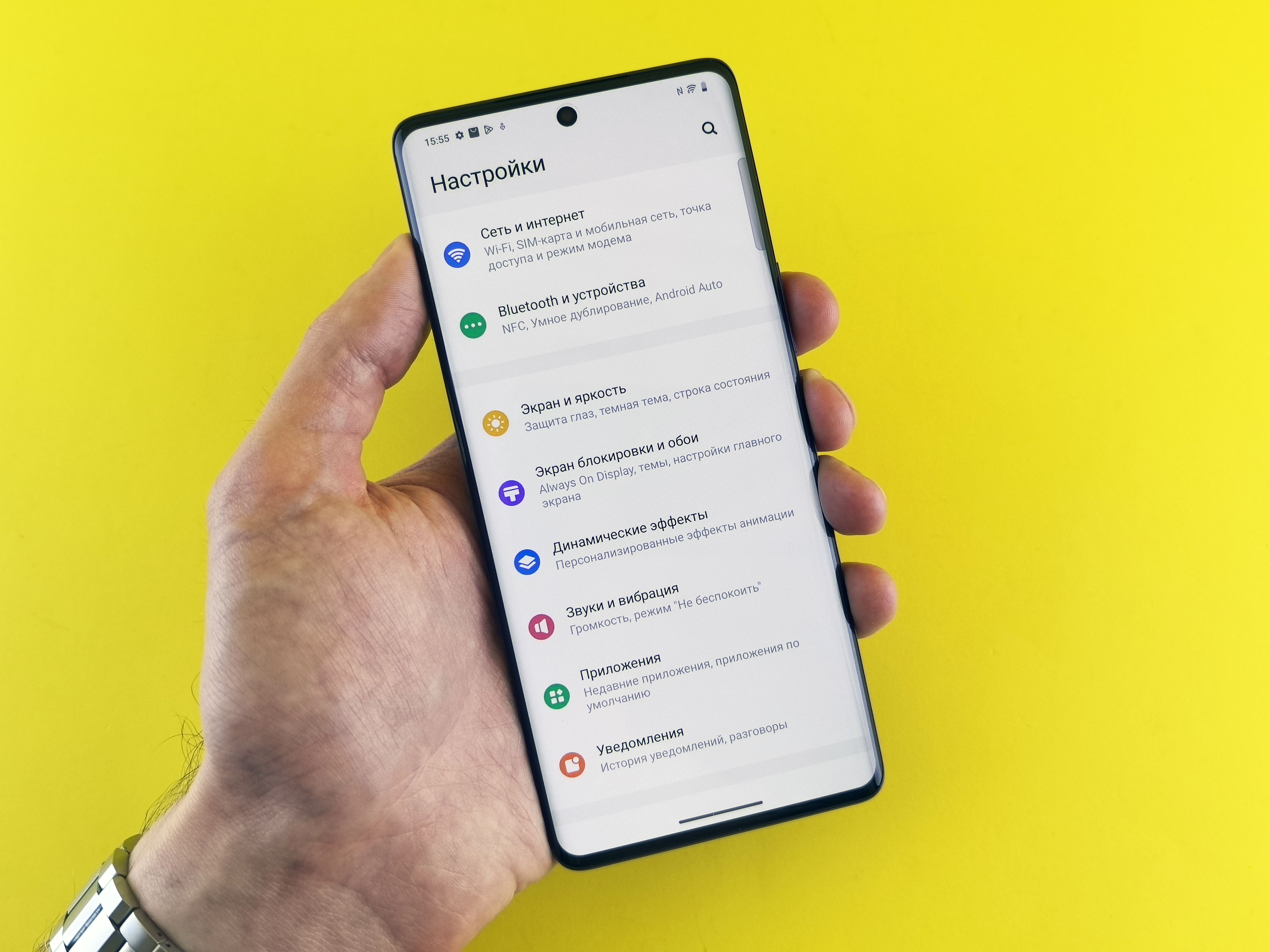
Learn how to check app permissions on Android and see exactly which apps can access your camera, microphone, and location — plus how to revoke risky access in minutes.
Introduction
Have you ever wondered exactly which apps on your phone can see through your camera, listen through your microphone, or track your location at any given moment? Knowing how to check app permissions on Android is one of the most important — and most overlooked — privacy habits any smartphone user can build.
Most people grant permissions during setup without a second thought, and over time, dozens of apps accumulate access they may no longer need or even remember granting. The good news is that Android gives you complete visibility and control over this — no third-party app required, and no technical expertise needed.
This guide walks you through exactly how to see what each app can access, and how to take control of it.
Why App Permissions Deserve Your Attention
Every time you install an app, it requests access to specific features of your phone — your camera, microphone, contacts, location, storage, and more. Some of these permissions are essential to how the app functions. A navigation app needs your location. A video calling app needs your camera and microphone.
But many apps request — and retain — far more access than they actually need. A flashlight app rarely needs access to your contacts. A simple game has no real reason to track your precise location in the background.
Reviewing your app permissions regularly helps you:
- Identify apps with unnecessary or excessive access
- Spot apps that may be collecting more data than expected
- Reduce your overall digital footprint and privacy exposure
- Catch outdated permissions granted to apps you no longer actively use
How to Check App Permissions on Android
1. View Permissions by Type
The fastest way to see exactly which apps can access a specific feature — like your camera or microphone — is to check by permission type rather than going app by app.
- Open Settings
- Go to Privacy or Privacy and Security
- Tap Permission Manager
- Select a category such as Camera, Microphone, or Location
- You will see a list of every app with access, divided into "Allowed" and "Denied"
This view is especially useful if you want a quick answer to "which apps can use my camera" or "which apps are using my location" without digging through each app individually.
2. View Permissions by Individual App
If you want to see everything a specific app has access to — not just one permission type — checking app by app gives you the full picture.
- Go to Settings → Apps
- Select the app you want to review
- Tap Permissions
- You will see a complete list of what the app can access, along with toggles to allow or deny each one
This method is useful when reviewing a new app right after installation, or auditing an app you use frequently to confirm it only has the access it truly needs.
3. Check Recent Permission Usage
Android also tracks recent permission activity, so you can see not just what an app is allowed to access, but what it has actually used recently.
- Go to Settings → Privacy → Permission Manager
- Select a permission type like Camera or Microphone
- Look for a timeline or recent activity log
- Check exactly when an app last used that permission
This is helpful for catching apps that access sensitive features more often than expected.
How to Manage and Revoke Risky App Permissions
1. Change Permissions to "Ask Every Time"
For permissions you are unsure about, Android offers a middle-ground option between "Always Allow" and "Deny": "Ask Every Time." This prompts the app to request access each time it needs that permission, rather than granting it permanently.
This is particularly useful for location access, where you may want an app to use your location only when actively needed — like ordering food — without tracking you continuously in the background.
2. Revoke Unused Permissions for Inactive Apps
Android automatically resets permissions for apps you have not opened in several months, but you can also do this manually for extra peace of mind.
- Go to Settings → Privacy → Permission Manager
- Review each permission category
- Revoke access for any app you no longer use regularly
- Revoke access for any app you do not recognize
If you reopen the app later, it will simply request the permission again.
3. Use Privacy Indicators to Spot Real-Time Access
Modern Android versions display a small green dot in the status bar whenever an app is actively using your camera or microphone.
If you notice this indicator appearing when you are not knowingly using either feature, it is worth checking which app triggered it immediately through the Permission Manager.
This real-time indicator is one of the simplest ways to catch unexpected access as it happens, rather than discovering it after the fact.
Why This Matters
For freelancers and small business owners handling sensitive client information, unnecessary app permissions can pose a real security risk — particularly for apps with microphone or camera access running in the background during client calls.
For students and office workers, location tracking by apps that do not need it can quietly drain battery and raise unnecessary privacy concerns.
Beyond security, reviewing your permissions is also good digital hygiene. It keeps your phone leaner, reduces background activity that can affect performance and battery life, and ensures you have a clear, accurate picture of exactly what your apps are doing — rather than assuming everything is fine by default.
Recommended Apps and Tools
While Android's built-in Permission Manager covers most needs, a few additional tools can support a more thorough privacy review:
- Privacy Dashboard — Built into Android and found under Settings → Privacy. It provides a visual timeline of permission usage across your entire device over the past 24 hours, helping you spot patterns at a glance.
- App Ops — A more granular permission control tool for advanced users, available on some Android versions. It is useful for reviewing deeper system-level permissions beyond the standard settings menu.
- Bouncer — A third-party app that automatically revokes permissions immediately after you finish using a feature, ideal for users who want one-time access without permanent grants.
For most users, Android's native Permission Manager and Privacy Dashboard are sufficient to maintain full visibility and control without installing anything extra.
Download Now Permit Hub: Permission Manager
Final Thoughts
Knowing how to check app permissions on Android puts you back in control of your own device. Camera, microphone, and location access are some of the most sensitive permissions any app can request — and reviewing them regularly takes only a few minutes but offers real, lasting privacy benefits.
Make it a habit to check your Permission Manager every few months, revoke access for apps you no longer use, and pay attention to privacy indicators as they appear. Small, consistent checks go a long way toward keeping your digital life secure.
Looking for more tools to protect your privacy and improve how your apps work? Apps Hunt features the best privacy, security, and productivity apps to help you stay in control of your device.
Explore more privacy and security app recommendations on Ai App Space
Frequently asked questions
Go to Settings → Privacy → Permission Manager to see which apps have access to specific features like camera, microphone, and location. You can also check permissions for an individual app under Settings → Apps → [App Name] → Permissions.
Open Settings → Privacy → Permission Manager → Camera. This shows every app with camera access, split into "Allowed" and "Denied" categories, along with recent usage activity.
Go to Settings → Privacy → Permission Manager → Location to see a full list of apps with location access. You can also check whether access is set to "Always," "While using the app," or "Ask every time" for each one.
Go to Settings → Apps → select the app → Permissions → tap the permission you want to remove → select "Don't allow." You can also revoke permissions in bulk through Permission Manager by category.
The green dot indicates that an app is actively using your camera or microphone at that moment. If it appears unexpectedly, check Settings → Privacy → Permission Manager to identify which app triggered it.
It is generally safer to use "Ask Every Time" or "While using the app" rather than permanent microphone access, especially for apps that do not require continuous audio input, such as social media or shopping apps.
Yes. Android automatically resets permissions for apps you have not opened in several months as a privacy safeguard. You can also manually revoke permissions sooner through the Permission Manager.
This is often unnecessary and can be a red flag. Reviewing permissions through Settings → Apps → [App Name] → Permissions allows you to deny access that has no clear functional purpose for that app.
Yes. The Permission Manager includes a recent activity timeline for each permission type, showing exactly when an app last accessed your camera, microphone, or location.
For most users, Android's native Permission Manager and Privacy Dashboard provide sufficient control. Advanced users sometimes use tools like App Ops or Bouncer for more granular, one-time permission management.