
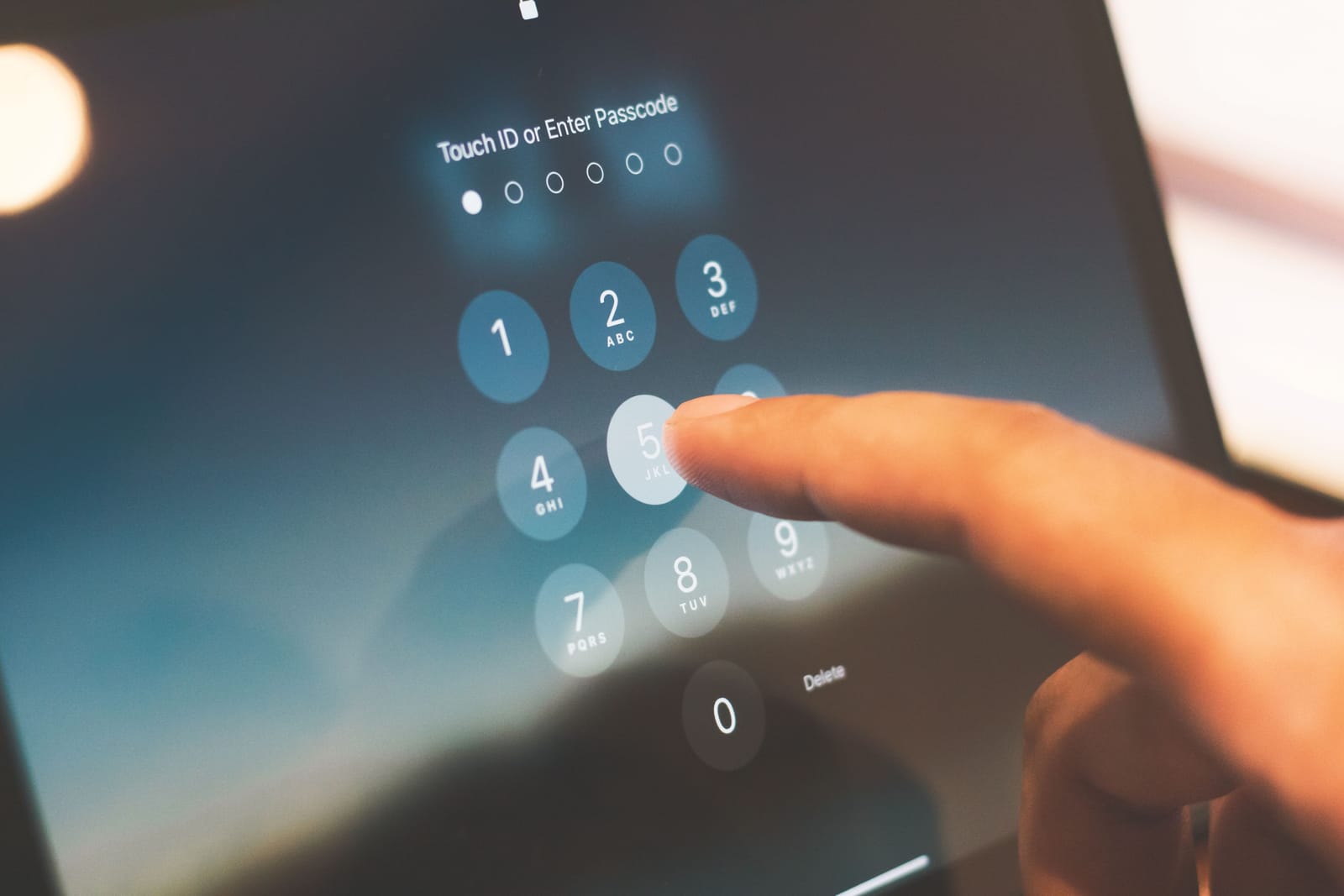
Compare the best password manager apps for secure passwords, passkeys, autofill, breach alerts, family sharing, and cross-device access in 2026.
Introduction
Most people manage far more online accounts than they realise. Email, social media, banking, shopping, cloud storage, work platforms, streaming services, and mobile apps may each require a separate login.
Remembering a unique password for every account is difficult. As a result, many users reuse the same password, create predictable variations, or save login details in unsecured notes and spreadsheets.
These habits increase the risk of account takeover. If one reused password is exposed, attackers may try it on other websites, email accounts, financial services, and business platforms.
The Best Password Manager Apps solve this problem by creating, storing, and autofilling strong credentials inside an encrypted vault. Many modern password managers also support passkeys, security alerts, password sharing, verification codes, emergency access, and cross-device synchronisation.
Some password managers focus on free and open-source access. Others provide advanced family sharing, business administration, email aliases, phishing protection, local storage, or support for a specific device ecosystem.
This guide compares ten leading password manager apps to help you choose the right option for your personal accounts, family, freelance work, or business.
Features, free-plan limits, subscription prices, passkey support, and device compatibility may change. Review the latest information on the provider’s official website or app-store listing before subscribing.
Best Apps to Protect Your Phone from Malware and Scams in 2026
How We Selected the Best Password Manager Apps
A password manager protects some of a user’s most sensitive information, so convenience should not be the only selection factor.
For this comparison, we considered:
- Password generation
- Password and passkey storage
- Autofill reliability
- Device and browser compatibility
- Free-plan usefulness
- Encryption and vault protection
- Two-factor authentication support
- Security and breach alerts
- Password-health reports
- Secure sharing
- Family and business features
- Emergency-access options
- Import and export controls
- Offline access
- Recovery options
- Ease of use
These rankings are editorial recommendations. The right choice depends on your devices, budget, privacy preferences, technical ability, and whether you need personal, family, or business access.
Why You Should Use a Password Manager
A password manager helps users follow one of the most important account-security practices: using a different strong password for every service.
Without a password manager, users often rely on:
- One password across multiple websites
- Small variations of the same password
- Personal information such as names or birthdays
- Passwords saved in notebooks or unprotected files
- Browser autofill without reviewing account security
- Password-reset emails whenever they forget a login
A dedicated password manager can improve this process by:
- Generating long and unpredictable passwords
- Storing logins inside a protected vault
- Autofilling credentials on recognised websites
- Warning about weak or reused passwords
- Supporting passkeys
- Sharing selected credentials securely
- Synchronising logins across approved devices
- Identifying credentials that may require attention
A password manager does not remove every security risk. Users must still protect their devices, email accounts, recovery methods, and master passwords.
1. Bitwarden — Best Overall Free Password Manager
Bitwarden is a popular open-source password manager designed for individuals, families, and organisations.
It stores passwords, passkeys, secure notes, payment information, identities, and other sensitive records inside an encrypted vault. Users can access their information through mobile apps, desktop apps, browser extensions, and a web vault.
Bitwarden’s free personal plan makes it particularly attractive to users who want core password management without a regular subscription. Paid plans add advanced security reports, emergency access, integrated authentication features, and additional sharing options.
Its open-source approach also appeals to users and technical teams that value transparency and self-hosting options.
Key Features
- Password and passkey storage
- Strong password generator
- Mobile, desktop, browser, and web access
- Autofill and autosave
- Secure notes and identity records
- Import and export tools
- Password sharing
- Security reports on supported plans
- Emergency-access options on supported plans
- Open-source code
- Self-hosting option
- Personal, family, and business plans
Best For
Bitwarden is best for individuals, students, freelancers, technical users, and families looking for a capable free password manager with broad device support.
Possible Limitation
Some advanced security reports, integrated authentication tools, emergency access, and expanded family features require a paid plan.
2. 1Password — Best Premium Password Manager for Families and Teams
1Password is a polished password manager designed for individuals, families, small teams, and enterprises.
It stores passwords, passkeys, secure notes, payment cards, addresses, documents, and other account information. Its apps and extensions are available across major desktop, mobile, and browser platforms.
One of its strongest features is Watchtower, which helps users identify weak, reused, or potentially compromised credentials.
1Password also provides secure vault sharing, family administration, team permissions, and Travel Mode. Travel Mode can temporarily remove selected vaults from a device while travelling and restore them later.
The service does not provide a permanent free personal plan, but it offers a trial period for users who want to test the platform.
Key Features
- Password and passkey management
- Password generator
- Autofill across supported browsers and apps
- Watchtower security alerts
- Secure item sharing
- Shared family vaults
- Team roles and permissions
- Travel Mode
- Multi-device access
- Secure notes and payment details
- Personal, family, team, and business plans
- Trial access for new users
Best For
1Password is best for families, professionals, frequent travellers, businesses, and users who want a polished premium experience.
Possible Limitation
Users looking for a permanently free password manager may prefer Bitwarden, Proton Pass, NordPass, Apple Passwords, or Google Password Manager.
3. Proton Pass — Best for Privacy and Email Aliases
Proton Pass is a password and identity-management app developed by Proton.
It stores passwords, passkeys, notes, payment details, and identity information across supported mobile, desktop, and browser platforms.
One of its most distinctive features is hide-my-email aliases. These aliases let users create a different email address for websites and online accounts instead of repeatedly sharing their primary email address.
This can reduce unwanted marketing, limit tracking, and make it easier to disable an address that begins receiving spam.
Proton Pass offers a strong free plan with unlimited logins, unlimited devices, password generation, passkey support, and a limited number of email aliases.
Key Features
- Unlimited logins on the free plan
- Unlimited supported devices
- Password and passkey storage
- Browser, desktop, and mobile apps
- Hide-my-email aliases
- Password generator
- Secure notes
- Identity and payment information
- Alerts for weak and reused passwords
- Secure sharing
- Open-source applications
- Integration with the Proton ecosystem
Best For
Proton Pass is best for privacy-conscious users, Proton customers, freelancers, and people who want password management combined with email-alias protection.
Possible Limitation
Advanced alias features, integrated two-factor authentication, additional sharing, and expanded security monitoring may require a paid plan.
4. Dashlane — Best for Password Health and Phishing Protection
Dashlane combines password management with password-health monitoring and protection against suspicious login pages.
It can generate, store, and autofill passwords and passkeys while helping users identify weak, reused, or compromised credentials.
Its security tools are designed to make password risks easier to understand. Users can review which credentials require attention instead of manually checking every account.
Dashlane also provides phishing and scam-protection features intended to warn users before they enter sensitive information on suspicious websites.
A limited free account is available, while complete multi-device and premium security features require a subscription.
Key Features
- Password and passkey management
- Password generator
- Autofill for logins and forms
- Password-health monitoring
- Weak and reused password alerts
- Breach-related notifications
- Phishing and scam warnings
- Secure notes
- Credential import and export
- Personal, family, and business plans
- Limited free access
- Premium trial availability
Best For
Dashlane is best for users who want clear password-health information and additional protection against suspicious login pages.
Possible Limitation
The free plan limits the number of passwords that can be stored. Users with many accounts will probably require a paid plan.
5. NordPass — Best for Simple Cross-Device Password Management
NordPass is a password manager from the company behind NordVPN.
Its clean interface is designed to make password generation, saving, synchronisation, and autofill easy for non-technical users.
The free plan includes unlimited password storage, automatic syncing across supported devices, autosave, autofill, and multi-factor authentication.
Paid plans add security tools such as Password Health, data-breach scanning, secure sharing, emergency access, and easier switching between active devices.
NordPass can also store passkeys, secure notes, payment cards, and personal information used for online forms.
Key Features
- Unlimited password storage on the free plan
- Automatic synchronisation
- Password and passkey support
- Autosave and autofill
- Password generator
- Multi-factor authentication
- Secure notes
- Payment-card storage
- Password Health on supported plans
- Data-breach scanning on supported plans
- Secure sharing on supported plans
- Personal, family, and business options
Best For
NordPass is best for users who want a simple interface, unlimited password storage, and easy access across different device types.
Possible Limitation
Some security monitoring, sharing, emergency-access, and multi-device convenience features require a premium subscription.
6. Keeper — Best for Families and Security-Focused Businesses
Keeper provides password-management products for individuals, families, businesses, and enterprises.
It stores passwords, passkeys, private files, payment details, notes, and other sensitive records. Keeper also supports secure sharing and permissions for family members and business teams.
Family plans provide separate private vaults along with shared folders. Business and enterprise plans add role-based policies, administration, reporting, provisioning, and identity-system integrations.
Keeper’s BreachWatch feature is designed to alert users when credentials require attention, although it may be sold as part of selected plans or add-ons.
Key Features
- Password and passkey storage
- Password generation
- Cross-device access
- Secure record sharing
- Private family vaults
- Shared folders and permissions
- Secure file storage on supported plans
- Emergency-access options
- Business administration
- Role-based policies
- Two-factor authentication
- Breach monitoring on supported plans
Best For
Keeper is best for families, security-conscious professionals, companies, and organisations that need controlled credential sharing.
Possible Limitation
Many of Keeper’s strongest monitoring, storage, family, and business capabilities require paid plans or separate add-ons.
7. RoboForm — Best for Passwords and Detailed Form Filling
RoboForm began as a form-filling tool and has developed into a complete password manager.
It can store passwords, passkeys, addresses, payment information, contacts, and other information frequently entered into online forms.
Its detailed form-filling capabilities are useful for people who regularly complete checkout pages, application forms, registration pages, or business records.
RoboForm also supports password auditing, offline access, multi-factor authentication, passwordless unlocking, and cross-platform apps.
Key Features
- Password and passkey management
- Password generator
- Login autofill
- Detailed form filling
- Identity and address profiles
- Payment-card storage
- Password auditing
- Offline access
- Multi-factor authentication
- Passwordless unlocking
- Secure sharing on supported plans
- Personal, family, and business options
Best For
RoboForm is best for users who want password management combined with strong address, identity, and payment-form filling.
Possible Limitation
Some syncing, sharing, emergency access, and premium security features may require a paid plan.
8. Apple Passwords — Best for Apple Users
Apple Passwords is built into supported Apple operating systems and provides a dedicated place for managing account credentials.
The app stores passwords, passkeys, Wi-Fi passwords, and verification codes. It can also warn users about credentials that may be weak, reused, or affected by known security issues.
Passwords and passkeys can synchronise across Apple devices through iCloud Keychain. Users can share selected credentials with trusted contacts through shared groups.
Apple Passwords works naturally with Safari, iPhone, iPad, Mac, and other Apple devices. Some password access is also available on Windows through Apple’s supported software and browser extension.
Key Features
- Password storage
- Passkey management
- Wi-Fi password storage
- Verification-code generation
- Security recommendations
- iCloud Keychain synchronisation
- Autofill in supported apps and browsers
- Shared password groups
- Import options
- Apple-device integration
- Biometric device authentication
- No separate password-manager subscription
Best For
Apple Passwords is best for users who primarily use iPhone, iPad, Mac, and Safari and want a built-in solution.
Possible Limitation
Users who regularly switch between Apple, Android, Linux, and multiple non-Safari browsers may prefer a more platform-independent password manager.
9. Google Password Manager — Best for Android and Chrome Users
Google Password Manager is integrated with Google Accounts, Android devices, and the Chrome browser.
It can save, generate, autofill, and manage passwords and passkeys. Users can also run Password Checkup to identify credentials that may be compromised, reused, or weak.
Google Password Manager supports importing and exporting credentials, family password sharing, automatic sign-in, and passkey recovery through a Google Password Manager PIN.
Because it is already integrated into Android and Chrome, many users can begin using it without installing a separate premium password manager.
Key Features
- Password and passkey management
- Android and Chrome integration
- Password generation
- Autosave and autofill
- Password Checkup
- Weak and reused password warnings
- Family credential sharing
- Import and export tools
- Google Password Manager PIN
- Access through a Google Account
- Mobile shortcut on Android
- No separate subscription
Best For
Google Password Manager is best for Android users, Chromebook owners, Chrome users, and people already using a Google Account across their devices.
Possible Limitation
Users who require advanced shared vaults, business administration, emergency access, independent desktop apps, or separation from their Google Account may prefer a dedicated password manager.
10. Enpass — Best for Local and Self-Controlled Vault Storage
Enpass takes a different approach from many cloud-first password managers.
Users can store their encrypted vault locally or synchronise it through a personal cloud-storage provider such as iCloud, Google Drive, OneDrive, Dropbox, WebDAV, or Nextcloud.
This gives users more control over where their encrypted password database is stored.
Enpass supports passwords, passkeys, multiple vaults, security alerts, autofill, and applications for major desktop and mobile platforms.
It can also operate offline, making it useful for users who do not want their vault stored on a password manager company’s central cloud service.
Key Features
- Local encrypted vault storage
- Personal cloud-sync options
- Offline use
- Password and passkey support
- Unlimited vaults on supported plans
- Password generator
- Autosave and autofill
- Security alerts
- Multi-platform applications
- Wi-Fi or local-network syncing options
- Personal and business plans
- User-controlled storage location
Best For
Enpass is best for privacy-focused users, technical professionals, and organisations that want more control over password-vault storage.
Possible Limitation
Setting up personal cloud or local synchronisation may require more configuration than using a fully managed cloud password manager.
How to Choose the Best Password Manager App
The password manager with the longest feature list may not be the best choice for your devices and habits.
Choose Bitwarden for a Strong Free Option
Bitwarden is suitable when you want a free, open-source password manager with broad platform support and optional self-hosting.
Choose 1Password for Families and Professional Teams
1Password is a strong premium option when you need polished apps, shared vaults, security alerts, Travel Mode, and controlled team access.
Choose Proton Pass for Privacy and Email Aliases
Proton Pass is useful when you want unlimited free logins and devices together with email-alias protection.
Choose Dashlane for Password-Health Guidance
Dashlane is suitable when you want clear security reports and additional warnings about suspicious login pages.
Choose NordPass for Simplicity
NordPass is a practical choice when you want unlimited free password storage with a clean and approachable interface.
Choose Keeper for Controlled Sharing
Keeper is useful for families and businesses that need private vaults, shared folders, permissions, and administrative security controls.
Choose RoboForm for Form Filling
RoboForm is appropriate when you regularly complete detailed online forms and want to store multiple identity profiles.
Choose Apple Passwords for the Apple Ecosystem
Apple Passwords is convenient when most of your devices are made by Apple and you prefer a built-in solution.
Choose Google Password Manager for Android and Chrome
Google Password Manager is practical when Android and Chrome are central to your daily browsing and app use.
Choose Enpass for Storage Control
Enpass is suitable when you want to choose where your encrypted vault is stored or need an offline password-management option.
Features to Look for in Password Manager Apps
Before creating an account or purchasing a subscription, check whether the password manager includes the features you genuinely require.
Strong Password Generation
The app should create long and unpredictable passwords without requiring you to invent memorable patterns.
A good generator should support:
- Adjustable length
- Letters
- Numbers
- Symbols
- Memorable passphrases
- Website-specific requirements
- Exclusion of confusing characters
Reliable Autofill
Autofill should work across the websites, browsers, and mobile apps you regularly use.
It should recognise the correct domain before entering credentials. This can also help users avoid entering passwords into obvious imitation websites.
Passkey Support
Passkeys allow supported services to replace traditional passwords with cryptographic credentials.
Look for a password manager that can:
- Create passkeys
- Save passkeys
- Autofill passkeys
- Synchronise them across devices
- Import or export them where supported
Password-Health Reports
A password-health dashboard can help identify:
- Reused passwords
- Weak passwords
- Old credentials
- Compromised credentials
- Accounts without two-factor authentication
- Websites that support passkeys
Two-Factor Authentication
Protecting the password-manager account with two-factor authentication adds another barrier if someone obtains the master password.
Supported options may include:
- Authenticator apps
- Hardware security keys
- Passkeys
- Trusted devices
- Biometric device authentication
- Recovery codes
Secure Sharing
Do not send passwords through ordinary chat messages or email when a password manager provides secure sharing.
Look for:
- Shared vaults
- Expiring links
- Permission controls
- View-only sharing
- Family groups
- Team folders
- Access removal
Emergency Access
Emergency access allows a trusted person to request access if the account owner is unavailable, seriously ill, or deceased.
This feature should include a waiting period and a clear approval or rejection process.
Import and Export
A password manager should make it possible to import existing credentials and export your data when changing services.
Exports may be unencrypted, so they should be stored temporarily, handled carefully, and deleted after migration.
Device Compatibility
Confirm support for all the systems you use, including:
- Android
- iPhone and iPad
- Windows
- macOS
- Linux
- Chrome
- Edge
- Firefox
- Safari
- Brave
- Chromebook
Family and Business Controls
Families and organisations may require:
- Separate private vaults
- Shared folders
- Role-based access
- Account recovery
- User provisioning
- Security policies
- Activity reporting
- Central administration
- Access removal when someone leaves
How to Set Up a Password Manager Safely
Installing a password manager is only the beginning. The account must also be configured carefully.
1. Create a Strong Master Password
Your master password protects access to the vault.
Use a long and unique passphrase that is not used for any other account. It should be memorable to you but difficult for someone else to guess.
Do not reuse:
- Your email password
- Your computer password
- A previous password
- A family member’s name
- Your date of birth
- A common quotation
- A predictable keyboard pattern
2. Enable Two-Factor Authentication
Enable the strongest practical authentication method supported by the password manager.
Save recovery codes in a secure offline location. Do not store the only copy of the recovery code inside the same vault it is intended to recover.
3. Secure Your Email Account
Your email account is often connected with password resets and account-recovery messages.
Protect it with:
- A unique password
- Two-factor authentication
- Updated recovery information
- Device security
- Login alerts
4. Import Existing Passwords Carefully
Most password managers can import credentials from browsers or competing services.
After importing:
- Confirm that important logins transferred correctly.
- Check whether passkeys and verification codes were included.
- Remove duplicate entries.
- Delete the exported file securely.
- Empty the recycle bin or trash.
- Remove old copies from cloud-storage folders.
5. Replace Reused Passwords Gradually
You do not need to change hundreds of passwords in one session.
Begin with the most important accounts:
- Primary email
- Banking and payment accounts
- Cloud storage
- Work platforms
- Social media
- Shopping accounts
- Government and health portals
- Domain and hosting accounts
Create a different strong password for each account.
6. Use Passkeys Where Available
When a trusted service supports passkeys, consider replacing the password after confirming that recovery options and device synchronisation are correctly configured.
7. Review Security Reports
Check the password manager’s security dashboard regularly.
Prioritise:
- Compromised passwords
- Reused passwords
- Very weak passwords
- Important accounts without two-factor authentication
- Old accounts you no longer need
8. Keep Devices Updated
A secure vault cannot fully protect an infected or unlocked device.
Install operating-system, browser, password-manager, and security updates when they become available.
Common Password Manager Mistakes to Avoid
Reusing the Master Password
The master password must never be reused on another website.
Saving the Master Password in an Unsecured Note
Avoid storing the master password in an ordinary note, email draft, messaging conversation, or unprotected document.
Ignoring Recovery Information
Review your recovery email, recovery codes, trusted devices, and emergency-access settings before an emergency occurs.
Leaving the Vault Unlocked
Configure automatic locking when the device sleeps, the browser closes, or a reasonable period of inactivity passes.
Approving Autofill Without Checking the Website
Before signing in, confirm that the website domain is correct. Attackers may create imitation pages with similar names.
Sharing an Entire Vault Unnecessarily
Share only the records another person needs. Remove access when it is no longer required.
Keeping Old Export Files
Password exports may contain credentials in readable form. Delete them securely after migration.
Treating the Password Manager as Complete Protection
A password manager does not protect against every scam, malicious attachment, stolen unlocked device, or social-engineering attack.
Continue using:
- Two-factor authentication
- Device screen locks
- Software updates
- Secure backups
- Careful link checking
- Account alerts
Dedicated Password Managers vs Built-In Browser Password Managers
Built-in options such as Apple Passwords and Google Password Manager can be excellent for users who remain within one ecosystem.
They are convenient, free, and already integrated with supported browsers and devices.
A dedicated password manager may be more suitable when you need:
- Independent apps across several operating systems
- Advanced family sharing
- Business administration
- Emergency access
- Local vault storage
- Email aliases
- Security reports
- Travel features
- Self-hosting
- Separation from a browser or platform account
The better choice depends on whether simplicity or platform independence is more important to you.
Which Password Manager App Should You Choose?
Choose Bitwarden when you want a strong free and open-source password manager.
Choose 1Password when you want a premium experience for personal, family, travel, or team use.
Choose Proton Pass when privacy and hide-my-email aliases are important.
Choose Dashlane when you want password-health guidance and phishing-related warnings.
Choose NordPass when you want simple cross-device syncing and unlimited free password storage.
Choose Keeper when your family or business requires structured credential sharing and permissions.
Choose RoboForm when detailed form filling is one of your main requirements.
Choose Apple Passwords when you primarily use Apple devices.
Choose Google Password Manager when you primarily use Android and Chrome.
Choose Enpass when you want local storage or control over the cloud service used to synchronise your vault.
Final Thoughts
The Best Password Manager Apps make it practical to use strong and unique credentials without memorising every password.
Bitwarden is one of the strongest overall free choices, while 1Password provides a polished premium experience for families, professionals, and teams.
Proton Pass combines password management with email aliases, Dashlane focuses on password health and suspicious-site warnings, and NordPass offers an approachable free plan with unlimited password storage.
Keeper provides controlled sharing for families and businesses, RoboForm is particularly useful for detailed form filling, and Enpass gives users more control over where their vault is stored.
Apple Passwords and Google Password Manager are convenient built-in options for users who mainly remain within their respective ecosystems.
Whichever app you choose, protect it with a unique master password, enable two-factor authentication, secure your email account, save recovery information safely, and begin replacing reused passwords on your most important accounts.
A password manager should not only save time. It should help you build safer account habits across every website, app, and device you use.
Explore more security, privacy, and utility apps on Apps Hunt
Frequently asked questions
Bitwarden, 1Password, Proton Pass, Dashlane, NordPass, Keeper, RoboForm, Apple Passwords, Google Password Manager, and Enpass are strong options. The best choice depends on your devices, budget, privacy preferences, and sharing requirements.
Bitwarden is one of the strongest free options because it provides core password management across supported devices and browsers. Proton Pass and NordPass also offer useful free plans with unlimited password storage or logins.
Reputable password managers encrypt stored credentials and protect the vault with a master password. However, users must still enable two-factor authentication, secure their devices, protect recovery information, and avoid phishing attacks.
Yes. Many modern password managers can create, store, synchronise, and autofill passkeys. Support may vary by operating system, browser, website, and subscription plan.
Using one well-protected password manager is generally safer than reusing passwords or storing them in unsecured notes. The master password must be unique, and two-factor authentication should be enabled.
Recovery options depend on the provider. Some password managers offer recovery codes, family recovery, emergency access, trusted devices, or administrator-assisted recovery. Users should configure and securely store recovery information before an emergency.
Built-in browser and platform password managers are convenient for users who remain within one ecosystem. Dedicated password managers are often better for cross-platform access, family sharing, business controls, emergency access, and advanced security reports.
Yes. Bitwarden, 1Password, Proton Pass, Dashlane, NordPass, Keeper, RoboForm, and Enpass support Android and iPhone. Apple Passwords is designed mainly for the Apple ecosystem, while Google Password Manager works closely with Android and Chrome.
Look for password generation, autofill, passkey support, two-factor authentication, security alerts, secure sharing, import and export tools, device synchronisation, emergency access, and clear recovery options.
Yes. Business password managers can provide shared vaults, role-based permissions, security policies, account recovery, user provisioning, administrative reports, and access removal when an employee leaves.