
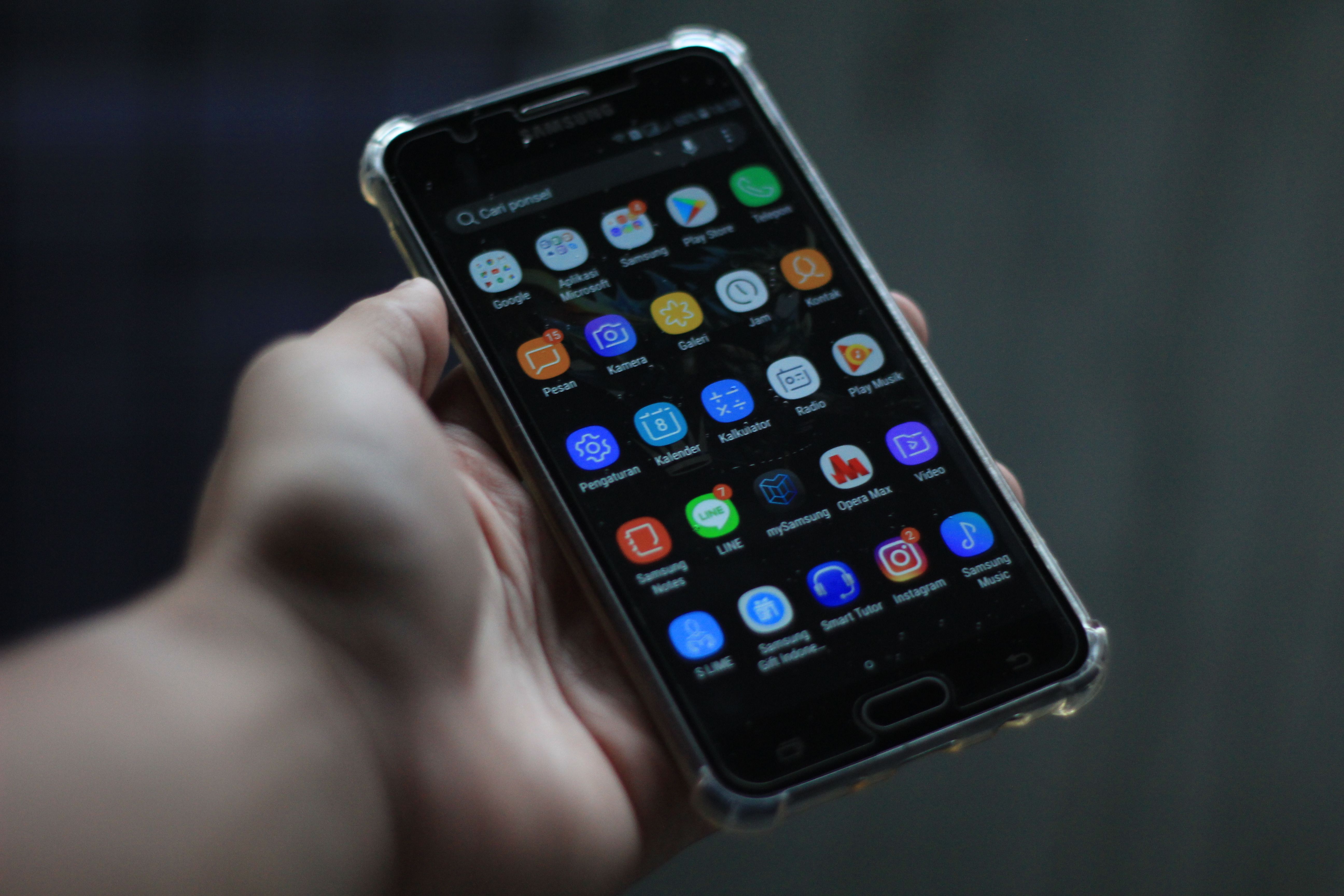
Tired of apps keep closing in the background on Android? Learn the real reasons behind it and step-by-step fixes, including brand-specific settings for Samsung, Xiaomi, and more.
Introduction
You switch away from an app for a few minutes — to check a message, take a call, or open another app — and when you come back, it has restarted from scratch. If apps keep closing in the background on Android for you, you are dealing with one of the most common complaints among Android users, especially on phones from Samsung, Xiaomi, Oppo, and other manufacturers known for aggressive battery management.
The frustrating part is that this is rarely a hardware problem. In most cases, it is your phone's software actively closing apps to save battery — even when you do not want it to. The good news is that this behavior can be controlled, and in most cases, fully fixed.
Download Permit Hub: Permission Manager
This guide explains exactly why it happens and how to stop it.
Why Apps Keep Closing in the Background on Android
Android manufacturers each apply their own layer of software on top of the core Android system, and many of them include aggressive memory and battery management features designed to "clean up" background apps automatically.
Here is what is typically happening:
- Battery optimization settings treat background apps as a power drain and force-close them after a short period of inactivity
- RAM management software, especially common on Samsung, Xiaomi, and Oppo devices, automatically clears apps from memory to free up resources
- Low RAM on the device causes Android to close background apps sooner to make room for whatever you are currently using
- App-specific settings that have not been exempted from battery restrictions get treated more aggressively than apps you have manually allowed to run freely
This is largely a built-in behavior rather than a bug — which means it can be adjusted through settings, rather than requiring a repair or reset.
How to Stop Apps From Closing in the Background
Disable Aggressive Battery Optimization
Most Android phones include a battery optimization feature that, left on its default "Optimized" setting, will close background apps automatically to conserve power.
- Go to Settings → Battery → Battery Usage or App Battery Usage
- Tap the app that keeps closing
- Select Unrestricted instead of Optimized or Restricted
Setting an app to "Unrestricted" tells Android it is allowed to run in the background freely, which significantly reduces the chances of it being force-closed.
Lock Apps in the Recent Apps Menu
Many Android phones allow you to "lock" specific apps directly from the recent apps multitasking screen, which prevents the system's memory management from clearing them automatically.
- Open the Recent Apps screen, usually by swiping up and holding, or tapping the square button
- Find the app you want to keep running
- Tap and hold its preview, or tap the small lock icon if available
- Select Lock, sometimes labeled "Keep app running" or similar
This is one of the most effective fixes on phones with heavy manufacturer customization, since it directly overrides the system's automatic cleanup behavior.
Adjust Background Process Limits
For more advanced control, Android's Developer Options allow you to adjust how many background processes the system allows at once.
- Go to Settings → About Phone
- Tap Build Number seven times to enable Developer Options
- Go to Settings → System → Developer Options
- Find Background Process Limit and set it to "Standard limit" or a higher value instead of a restricted one
This setting is more technical, so it is best used only if the previous two steps have not fully resolved the issue.
Brand-Specific Fixes
Samsung One UI
- Go to Settings → Apps → App Name → Battery
- Set the app to "Unrestricted"
- Also check Settings → Device Care → Battery → Background usage limits
- Remove the app from the "Sleeping apps" or "Deep sleeping apps" list
Xiaomi MIUI
- Go to Settings → Apps → Manage Apps → App Name → Battery saver
- Select "No restrictions"
- Enable "Autostart" for the app under Settings → Permissions → Autostart
Oppo / Realme ColorOS
- Go to Settings → Battery → App Battery Management
- Find the app
- Disable restrictions related to sleeping apps after restart
- Allow Autostart and background activity manually
OnePlus OxygenOS
- Go to Settings → Battery → Battery Optimization
- Select the app
- Choose "Don't optimize"
Across all brands, the principle is the same: locate the app-specific battery and background settings, and explicitly tell the system not to restrict that particular app.
Why This Matters
For freelancers and small business owners, an app closing unexpectedly can mean losing an in-progress message draft, restarting a video call, or missing a notification from a client at a critical moment.
For students, it often means losing progress in a note-taking or study app mid-session.
For office workers, it can disrupt productivity apps, messaging platforms, or video conferencing tools right when they are needed most.
This is not just an annoyance — repeated background closures interrupt workflows and reduce trust in the apps you rely on daily. Fixing it properly means your phone works the way you expect, every time you switch tasks.
Recommended Apps and Tools
While most fixes for apps closing in the background are handled directly through Android's built-in settings, a few tools can help diagnose and manage the issue further:
- Don't Kill My App! — A community-maintained resource with companion app that documents exactly which settings need to be adjusted for specific phone brands and models to stop background app closures.
- Greenify — Helps manage which apps hibernate versus stay active, giving you more granular control over background behavior, particularly on older or lower-RAM devices.
- Files by Google — While not directly related to background apps, freeing up storage and RAM-heavy junk files can reduce the system's overall need to aggressively close background processes.
These tools are especially useful if brand-specific settings alone do not fully resolve the issue.
Final Thoughts
If apps keep closing in the background on Android, the cause is almost always your phone's battery optimization or memory management settings being too aggressive — not a problem with the app itself or your device's hardware.
Setting the affected app to "Unrestricted," locking it in the recent apps menu, and checking brand-specific battery settings resolves this issue for the vast majority of users.
Take a few minutes to apply these fixes to the apps you use most, and you should notice a significant improvement in how reliably they stay open between tasks.
Looking for more tools to optimize your Android experience? Apps Hunt features the best apps for performance, battery management, and everyday productivity.
Explore more Android tools and tech fixes on Ai App Space
Frequently asked questions
This usually happens because of aggressive battery optimization or RAM management settings built into your phone's software, which automatically close background apps to save power and free up memory. Setting the app to "Unrestricted" in battery settings typically resolves this.
Go to Settings → Battery → Battery Usage, select the app, and choose "Unrestricted." You can also lock the app in the Recent Apps menu to prevent the system from clearing it from memory.
This happens when Android closes the app's process entirely rather than just minimizing it. Setting battery usage to "Unrestricted" and locking the app in the recent apps screen prevents this from happening.
Samsung's One UI is known for aggressive background app management by default. Checking Settings → Device Care → Battery → Background usage limits and removing the app from "Sleeping apps" lists usually fixes this.
Yes. Phones with limited RAM are more likely to close background apps to free up memory for whatever is currently active. Closing unused apps, clearing cache, and reducing the number of apps running simultaneously can help.
Open the Recent Apps screen, find the app, and tap and hold its preview or tap the lock icon if available, then select "Lock." This tells the system not to automatically clear that app from memory.
MIUI has historically used strict battery and memory management by default. Setting battery saver to "No restrictions" and enabling Autostart for the app under Settings → Permissions resolves this on most Xiaomi devices.
Disabling battery optimization for a specific app allows it to run more freely in the background, which can use slightly more battery. However, applying this only to the few apps you truly need running consistently keeps the impact minimal.
Sometimes. Manufacturers occasionally adjust background app management behavior in system updates. However, the most reliable fix is manually adjusting battery and background settings for the specific apps affected, regardless of software version.
Yes. "Don't Kill My App!" provides brand-specific instructions for stopping background closures, Greenify offers more granular control over app hibernation, and Files by Google helps reduce the storage and RAM pressure that often triggers aggressive background management.