
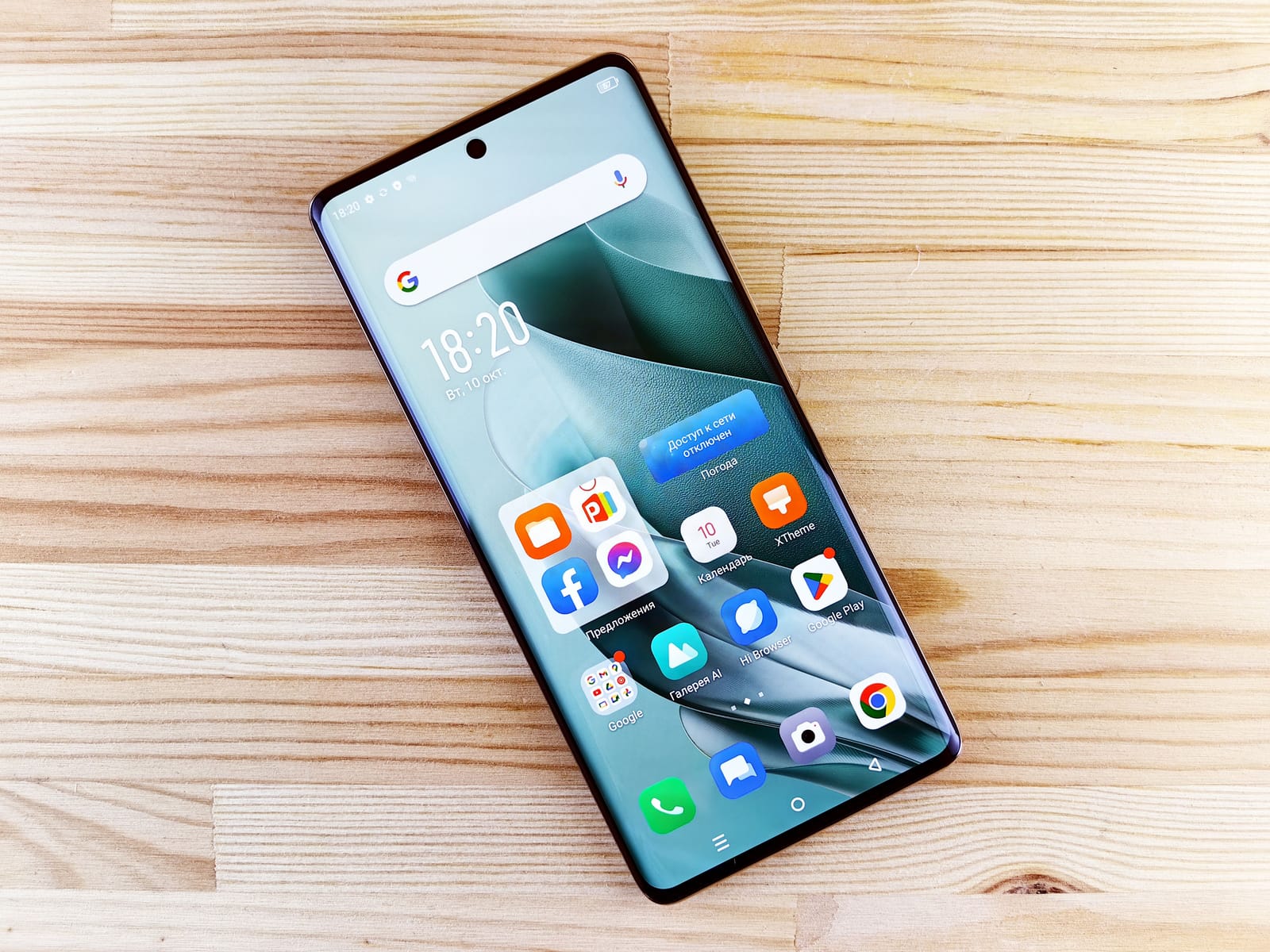
Is your Android phone slow? Discover 9 simple, proven fixes — from clearing cache to freeing storage — that can speed up your device before you spend money on a new phone.
Introduction
If your Android phone is slow and you are already eyeing a replacement, take a breath first. In most cases, a sluggish phone is not a sign that your device is dying — it is a sign that it needs some basic maintenance. Apps accumulate clutter, storage fills up, and background processes pile on over time, gradually dragging down performance even on phones that were fast when you first bought them.
Before spending money on a new device, it is worth running through a few proven fixes. Many users find their phone performs noticeably better — sometimes feeling brand new again — after just 15–20 minutes of cleanup.
Here are 9 fixes to try, in order, before deciding a new phone is truly necessary.
Why Android Phones Slow Down Over Time
Understanding why performance declines makes it easier to fix — and prevent — going forward. Common causes include:
- Accumulated cache and junk files that build up across apps over months of use
- Low available storage, which forces the system to work harder to manage data
- Too many background apps competing for limited RAM and processing power
- Outdated software, missing performance improvements included in newer updates
- Excessive animations and visual effects that add unnecessary load on older hardware
- Pre-installed bloatware running silently in the background, consuming resources
Most of these issues build up gradually, which is why a phone that felt fast a year ago can feel frustratingly slow today — even without any major change in how you use it.
Permit Hub: Permission Manager
Android Phone Slow? 9 Fixes to Try First
1. Restart Your Phone
It is simple, but often overlooked. Restarting clears temporary files, closes stuck background processes, and resets memory allocation.
If you have not restarted your phone in several days or weeks, this alone can produce a noticeable speed improvement.
2. Clear App Cache
Cached data helps apps load faster initially, but over time it can become bloated or corrupted, actually slowing things down instead.
- Go to Settings → Storage → Cached Data and clear it system-wide
- Or clear cache individually under Settings → Apps → App Name → Storage → Clear Cache
3. Free Up Storage Space
When your phone's storage gets too full, performance suffers across the board — apps load slower, multitasking becomes sluggish, and even basic tasks can lag.
Aim to keep at least 10–15% of your total storage free.
- Go to Settings → Storage
- Check what is taking up the most space
- Remove large files, duplicate photos, or old downloads you no longer need
4. Uninstall Unused Apps
Every installed app consumes some storage and may run background processes even when you are not using it.
Review your app list and uninstall anything you have not opened in months. This is one of the fastest ways to reclaim both storage and system resources.
5. Disable or Limit Animations
Visual animations make the interface feel polished, but they can also make an aging phone feel slower than it actually is.
- Go to Settings → About Phone
- Tap Build Number seven times to enable Developer Options
- Go to Settings → System → Developer Options
- Reduce or disable Window animation scale
- Reduce or disable Transition animation scale
- Reduce or disable Animator duration scale
6. Update Android and Your Apps
Software updates frequently include performance improvements, bug fixes, and better resource management.
- Check Settings → System → Software Update for your Android version
- Open Play Store → Manage Apps & Device
- Update any outdated apps
7. Limit Background Apps
Apps running unnecessarily in the background consume RAM and processing power even when you are not using them.
- Go to Settings → Apps
- Select the app you want to manage
- Tap Battery
- Restrict background activity for apps you do not need running constantly
8. Check for Malware or Junk Apps
Occasionally, slow performance is caused by malicious or poorly coded apps consuming resources without your knowledge.
- Open Play Store
- Tap your Profile Icon
- Go to Play Protect
- Run a device scan
- Remove any apps you do not recognize or trust
9. Factory Reset as a Last Resort
If your phone is still slow after trying everything above, a factory reset clears all accumulated software clutter and restores the device to its original state.
Before doing this, back up your photos, files, contacts, and important data.
- Go to Settings → System
- Tap Reset Options
- Select Erase All Data or Factory Reset
This step resolves performance issues caused by deep software buildup that standard cleanup cannot fully address — and it is far less expensive than buying a new phone.
Why This Matters
A slow phone affects more than just convenience. For students, lag during note-taking or research can break concentration during study sessions.
For freelancers and entrepreneurs, a sluggish device can delay client communication or slow down time-sensitive work.
For office workers, performance issues during video calls or document editing can disrupt entire workdays.
Beyond productivity, replacing a phone is a significant expense — often unnecessary when the real issue is software clutter rather than failing hardware. Taking the time to properly diagnose and fix performance issues can extend your phone's usable life by a year or more, saving you money while keeping your daily workflow smooth.
Recommended Apps and Tools
While most fixes for a slow Android phone can be done through built-in settings, a few tools can support ongoing maintenance:
- Files by Google — Identifies junk files, duplicate photos, and unused apps, making regular storage cleanup quick and simple.
- CCleaner for Android — A long-trusted tool for clearing cache, residual files, and app leftovers that standard settings sometimes miss.
- Google Play Protect — Built into Android and automatically scans installed apps for malware and security risks.
Using one of these tools for a monthly cleanup can help prevent performance issues from building up again after you have already fixed them.
Final Thoughts
If your Android phone is slow, a new device is rarely the first solution you need. In most cases, clearing cache, freeing up storage, limiting background apps, and keeping your software updated will restore much of your phone's original speed — often within 20 minutes.
Work through the fixes in order, starting with the simplest. Most users see a noticeable improvement after just the first three or four steps, without ever needing to reach for a factory reset or a new purchase.
Looking for more tools to keep your phone running at its best? Apps Hunt features the best performance, cleanup, and productivity apps to help you get more out of the device you already have.
Contact For Ai Automation Tools
Frequently asked questions
Sudden slowdowns are often caused by a recent app update, a full storage drive, or background apps consuming resources unexpectedly. Restarting your phone and checking recent app updates is a good first step to identify the cause.
Clearing app cache, freeing up storage space, uninstalling unused apps, and limiting background activity are all free, built-in ways to noticeably speed up an Android phone without spending anything.
Yes, especially if cache data has built up significantly over time or become corrupted. Clearing it through Settings → Storage → Cached Data or on an app-by-app basis can resolve sluggishness in many cases.
Keeping at least 10–15% of your total storage free helps maintain smooth performance. When storage runs critically low, the system has to work harder to manage data, which directly slows down the device.
Yes, in most cases. A factory reset clears all accumulated software clutter, removes unused apps, and restores the device to its original performance level. It should be used as a last resort after backing up important data.
Often, yes. Apps running unnecessarily in the background consume RAM and processing power even when not actively in use. Restricting background activity for apps you do not need running constantly can noticeably improve speed.
Yes. Software updates frequently include performance optimizations and bug fixes specifically aimed at improving speed and resource management, in addition to security improvements.
If your phone is several years old and still slow after trying cleanup steps like clearing cache, freeing storage, and updating software, hardware limitations may be a factor. However, most slowdowns on phones under 3–4 years old are resolved through software maintenance alone.
Yes, though it is less common than software clutter. Malicious or poorly coded apps can consume resources without your knowledge. Running a scan through Google Play Protect can help identify and remove any harmful apps.
Restarting your phone is the simplest first step and often produces an immediate improvement by clearing temporary files and resetting background processes. From there, clearing cache and freeing up storage are the next most effective steps.